This article contains the FAQs for the RV2600WA Series Shark Matrix ™ Plus 2-In-1 Robot (One Bin). This supports the RV2610WA.
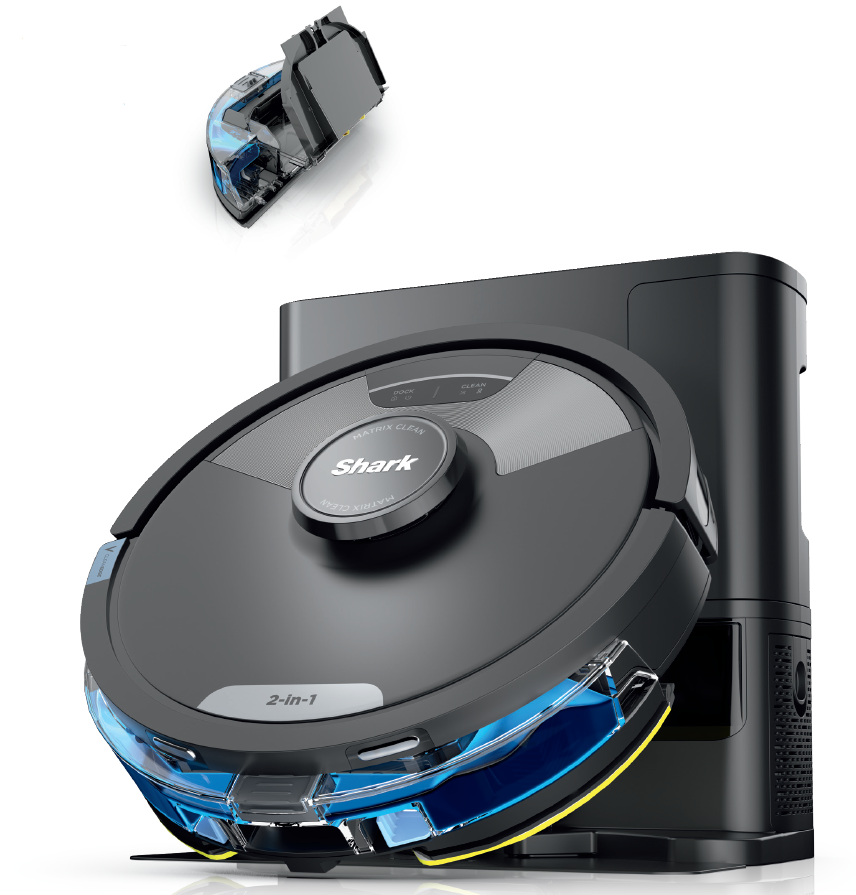
Getting Started/Getting to Know the Cleaning Modes
Getting started
Getting to know the Cleaning Modes
Cleaning and Maintenance
How do I clean the filter in the robot and how often do I clean it?
Before performing any maintenance on your robot, turn off the power by moving the robot off its base and holding down the DOCK button for 5 to 7 seconds.
To remove the filter, pull it out of the dust bin by the tabs. Lightly tap the filter against the inside of a trash can to knock off debris. DO NOT use water or soap to clean this filter, as it may cause damage.
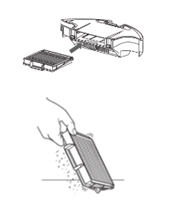
We recommend cleaning the filter every two months and replacing it every 6 to 12 months. You can purchase replacement filters from sharkaccessories.com.
How do I clean the pre motor filter in the base and how often do I clean it?
Before performing any maintenance on the base, power it off by unplugging it from the power source.
To clean remove the foam filter and the felt filter beneath it in the base.
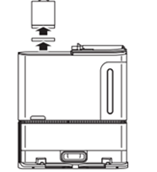
Rinse both filters with water only. Washing with soap may damage them. Do not wash the filters in the washing machine.
Allow the filters to air-dry for 24 hours before reinstalling them back into the base.
After the filters have dried, reinsert the felt filter, followed by the foam filter on top of it.
We recommend cleaning the filters every two months and replacing them every 6 to 12 months. You can purchase replacement filters from sharkaccessories.com.
How do I clean the post motor filter in the base and how often do I clean it?
Before performing any maintenance on the base, power it off by unplugging it from the power source.
To remove the post-motor filter from the base, press the button at the top of the filter door, then tilt the door and lift it off.
Pull the tab down to remove the post-motor filter from the base.
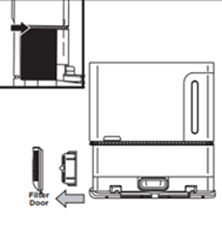
Tap the filter clean over the trash. To reinstall the post-motor filter, insert it into the base, then replace the filter door.
We recommend cleaning the filter every two months and replacing it every 6 to 12 months.
You can purchase a replacement filter from sharkaccessories.com.
How do I manually empty the Vac & Mop 2-in-1 Dust Bin?
Before performing any maintenance on your robot, turn off the power by moving the robot off its base and holding down the DOCK button for 5 to 7 seconds.
The Vac & Mop 2-in-1 Dust Bin will automatically empty into the self-empty base, but to manually empty the dust bin:
1. Remove the dust bin from the back of the robot. Press the release button and slide out the bin.
2. Hold the dust bin over the trash.
3. Pull up the dry debris access lid on top of the bin.
4. Empty dry debris into the trash.
5. Clean the area between the filter and the plastic shield.
6. To wash the bin, first remove the filter. Rinse the dust bin with water only and allow it to air-dry before reinstalling.
Use caution when maintaining the Vac & Mop 2-in-1 Dust Bin.
How do I clean the brushroll and how often should I clean it?
To ensure optimal performance, we recommend cleaning the brushroll whenever hair or debris is visible. We also recommend replacing it every 6 to 12 months and when visibly worn.
Before performing any maintenance on your robot, turn off the power by moving the robot off its base and holding down the DOCK button for 5 to 7 seconds.
1. Remove the Vac & Mop 2-in-1 Dust Bin.
2. Turn the robot over and take off the plastic brushroll cover. To remove the cover, press the two tabs and pull upward.
3. Lift the brushroll out of its compartment and clear all hair and debris from the brushroll and the compartment. Make sure to clear debris from both ends of the compartment, where the brushroll attaches.
4. Remove any hair, fibers, or debris that is wrapped around the brushroll.
5. Clear all hair and debris from around and underneath the brushroll endcap, ensuring it rotates freely.
6. Replace the brushroll. Fit the square hole on the end of the brushroll over the square peg in the compartment.
7. Replace the brushroll cover. Press down on it until it clicks into place.
You can purchase a replacement brushroll from sharkaccessories.com.
How do I clean the side brushes and how often should I clean it??
The side brushes need regular cleaning. Replace side brushes when they are visibly worn.
Before performing any maintenance on your robot, turn off the power by moving the robot off its base and holding down the DOCK button for 5 to 7 seconds.
1. Remove the Vac & Mop 2-in-1 Dust Bin.
2. To remove a side brush, turn the robot over, grip the rubber at the base of the brush bristles, and lift the brush off its post. Remove all hair and debris from the brush.
3. Before reattaching the side brush, remove any hair or debris from the brush post.
4. Align the square hole in the side brush with the square post on the bottom of the robot and press the brush down until it clicks into place. Spin the side brush to ensure that it is rotating freely and not jammed.
You can purchase replacement side brushes from sharkaccessories.com.
How do I clean the sensors and charging contacts?
For best results, clean the sensors and charging contacts regularly. Sensors may work less effectively when they are dirty.
Before performing any maintenance on your robot, turn off the power by moving the robot off its base and holding down the DOCK button for 5 to 7 seconds.
Use a dry cloth to gently dust off the sensors and contacts on the bottom of the robot and on the Self-Empty Base.
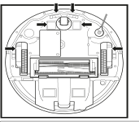
How do I clean the LIDAR MODULE?
Before performing any maintenance on your robot, turn off the power by moving the robot off its base and holding down the DOCK button for 5 to 7 seconds.
Periodically check the LiDAR navigation module on top of the robot for hair and debris.
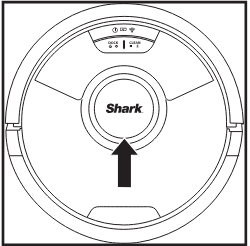
Gently wipe away any hair or debris from the module.
For a more thorough cleaning, place the robot on a level surface and turn off the power, then spray compressed air to clean out the gap around the rotating LiDAR module.
How do I clean the robot's mopping pad? How often should I clean or replace it?
Before performing any maintenance on your robot, turn off the power by moving the robot off its base and holding down the DOCK button for 5 to 7 seconds.
After each wet cleaning run, clean the mop pad and empty the remaining fluid from the reservoir.
Replace the pad every three months, or as needed.
To remove the pad:
1. Carefully detach the pad from the reservoir.
2. Slide the pad to the side, away from the reservoir.
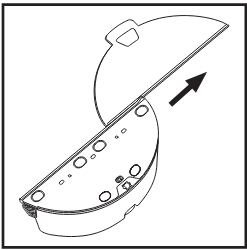
Rinse off the pad, or clean it in a washing machine. Use mild detergent, and do not use bleach or fabric softener.
Air-dry, or tumble-dry on low with no dryer sheets.
To reinstall the pad after it dries, or to install a new pad, slide it into the slot on the edge of the reservoir. Secure the pad to the reservoir with a light press to engage the Velcro.
NOTE: Mop pad color may vary.
How do I clean the robot wheels and how often should I clean them?
Before performing any maintenance on your robot, turn off the power by moving the robot off its base and holding down the DOCK button for 5 to 7 seconds.
Clean the front wheel housing periodically.
To clean the housing:
1. Rotate the front wheel while lightly brushing away dirt and debris. Brush dirt and debris off the wheel and the housing around it.
2. Periodically clean the drive wheels and the housing around them. To clean, rotate each drive wheel while dusting it.
NOTE: Brush not included.
How do I empty the robot dust bin?
Before performing any maintenance on your robot, turn off the power by moving the robot off its base and holding down the DOCK button for 5 to 7 seconds.
1. Remove the dust bin from the back of your robot. Press the release button and slide out the dust bin.
2. Hold the dust bin over the trash.
3. Press and hold the lid release button while lifting the lid, using the finger slots.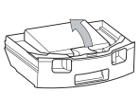
4. Empty debris into the trash.
5. Wipe down the dust bin with a damp cloth. Let the bin air-dry for 48 hours before reinstalling.
App
How do I download and use the SharkClean app?
Apple:
1. Tap on the App Store icon - Link here to App Store
2. Search the Apple App Store for "SHARKCLEAN®".
3. Tap on the SHARKCLEAN® app.
4. Tap Install on the next page. Installation should begin.
Android:
1. Tap on the Play Store icon in the Play Store -Link here to Play Store
2. Search for "SHARKCLEAN®."
3. Tap on the SHARKCLEAN® app.
4. Tap install on the Shark app page. Installation should begin.
5. You must accept location access. If you do not accept the permissions, you are not able to use the robot in connected fashion.
How do I know if I have the latest version of the SharkClean® app?
Shark® is constantly innovating and will release new versions of SharkClean® app to optimize robot cleaning performance and provide new features. To ensure you are on the latest version, please search for the SharkClean app in the App Store (for Apple) or the Google Play store (for Android). Check periodically for updates and install them when available.
How do I use my robot with Amazon Alexa?
1. Open the Amazon Alexa app, go to the menu, and select Skills. Or go to the Alexa Skills store on the Amazon website.
2. Search for "Shark Skill".
3. Select the Shark Skill to open the detail page, then select the Enable Skill option.
4. Once enabled, you can ask Alexa to control your robot (i.e. "Alexa, tell Shark to start cleaning").
For further assistance, visit our Smart Home Troubleshooting Guide here.
How do I use my robot with Google Assistant?
To set up your robot with the Google Assistant on an Apple device:
1. Download the Google Assistant. Open it, and sign in.
2. Click the "Explore" icon.
3. Search for the "Shark" action and select "Try it".
4. Allow Google to link to your SharkClean account.
5. Sign in to your SharkClean account. This is the same account you used when setting up your Shark robot in the SharkClean app.
6. Click Authorize to link your SharkClean account to the Google Assistant. This allows the Google Assistant to work with your Shark robot.
Congratulations! Your accounts are now linked. Use the voice command
"OK Google, tell Shark to start cleaning" to send your robot into action.
To set up your robot with the Google Assistant on Android:
1. Download the Google Assistant. Open it, and sign in.
2. Click the "Explore" icon.
3. Search for the "Shark" action and select "Link".
4. Sign into your SharkClean account. This is the same account you used when setting up your Shark robot in the SharkClean app.
Congratulations! Your accounts are now linked. Use the voice command
"OK Google, tell Shark to start cleaning" to send your robot into action.
For further assistance, visit our Smart Home Troubleshooting Guide here.
What voice commands can I use with my robot?
Here are the voice commands you can use with your Shark Robot:
Amazon Alexa:
"Alexa, tell Shark to start cleaning."
"Alexa, tell Shark to pause my robot."
"Alexa, tell Shark to pause my bot."
"Alexa, tell Shark to send my robot to the dock."
"Alexa, tell Shark to send my bot to the dock."
"Alexa, tell Shark to find my robot."
Google Assistant:
"OK Google, tell Shark to start cleaning."
"OK Google, tell Shark to pause my robot."
"OK Google, tell Shark to send my robot to the dock."
"OK Google, tell Shark to pause my bot."
"OK Google, tell Shark to send my robot to the dock."
"OK Google, tell Shark to send my bot to the dock."
"OK Google, tell Shark to find my robot."
For further assistance, visit our Smart Home Troubleshooting Guide here.
What is Matrix Clean?
Matrix Clean allows your robot to perform targeted cleaning missions around your home in areas that need a deeper clean. In this mode, your robot will use incredible suction to pick up dirt and debris on all floor types, while making multiple passes in a precision grid to ensure nothing is missed.
Use Matrix clean in Room select or Spot Clean.
To enable Matrix Clean:
1. Open your SharkClean® app.
2. Select the area you want to be cleaned—a room, or a spot.
3. Click "Matrix Clean" and your robot will begin.
4. You can also initiate Matrix Clean without the app. Place the robot in the center of a 5' by 5' area to be cleaned. Press and hold the Clean button on the robot for 5 to 7 seconds to begin.
What is Matrix Mop?
Matrix Mop allows your robot to perform targeted wet cleaning missions around your home in areas that need a deeper clean. In this mode, your robot will go over areas of your home multiple times, in a swirl pattern, for a more concentrated clean than in normal mode. Use Matrix Mop in Spot Clean.
To enable Matrix Mop:
1. Fill the port of the Vac & Mop 2-in-1 Dust Bin with water or a mixture of water and VACMOP Fluid.
2. Attach the Vac & Mop 2-in-1 Dust Bin to your robot.
3. Open your SharkClean® app.
4. Select the area you want spot-cleaned.
5. Click "Matrix Mop" and your robot will begin.
6. You can also initiate Matrix Mop without the app. Place the robot in the center of a 5' by 5' area to be cleaned. Press and hold the Clean button on the robot for 5 to 7 seconds to begin.
What is Recharge and Resume?
Recharge & Resume enables your robot to return to its base to recharge when it runs low on battery power during a cleaning mission and still has area left to clean. When docked on the base, the robot recharges until the battery reaches 100%, and then resumes the cleaning mission. Recharge & Resume automatically enabled if your home is larger than 900 sq. ft. Recharge & Resume can be turned off from the Settings section in the app.
How do I disable Recharge & Resume?
To disable Recharge & Resume, go into Settings in the app, select your robot's name, then select Recharge & Resume.
What is Evacuate and Resume?
Evacuate & Resume enables your robot to return to its base to evacuate its dust bin while performing a cleaning mission, then resume cleaning automatically after. If this setting is not enabled, the robot will conclude its mission once its dust bin is full.
How do I disable Evacuate & Resume?
To disable Evacuate & Resume, go into Settings in the app, select your robot's name, then select Evacuate & Resume.
Can my robot be controlled with multiple mobile phones or other devices?
Yes. In order to control your robot on multiple devices, you will need to log in to the SharkClean® app on each device. Make sure to use the same username and password on each device.
How do I adjust my robots cleaning power?
When connected to the app and once your robot begins its cleaning mission, you can adjust the cleaning power to meet your needs.
You can save your preferences and adjust them in the robot settings at any time.
Max Mode: Better pick-up, but will drain battery faster.
Normal Mode: Balance of pick-up and coverage.
Eco Mode: Cover more area and save battery, but will reduce suction.
How do I select specific rooms to clean?
You can clean specific rooms only if your robot has created a map of your home, and you've added rooms to the map.
From the home screen of the SharkClean® app, select the Rooms tab. Next, select the rooms you would like to clean on the map and tap the CLEAN button.
How do I schedule a cleaning?
To schedule a cleaning in the app, select Schedule from the home screen or from the menu in the top left corner. Here you can select specific days times you would like your robot to clean. You may return to this screen at any time to change your settings or to turn off the scheduling feature.
How do I access my latest cleaning report?
1. Open the SharkClean® app (note: if your robot was not paired to the app, you will not be able to see the history).
2. Open the menu in the top left corner of the screen, select History.
3. The history screen will display your robot's cleaning coverage for the last 30 days.
4. Tap the desired day to view the cleaning details.
Note: If you run the robot multiple times in a day, the app will only generate the cleaning details for the most recent run.
Mopping Questions
In mop mode, will my robot vacuum and mop at the same time?
Yes.
Which chemical solution can my robot use to mop the floor?
For the best and safest results, use ONLY water, or a mixture of water and Shark VACMOP surface cleaner with your robot.
How do I know if my robot is ready to mop?
When the pad plate is properly attached to the Vac & Mop 2-in-1 Dust Bin, it will click into place and the DOCK light on the robot will flash blue briefly.
Make sure that the water reservoir is filled with water. The filling port is under the blue gasket.
How do I know if the Vac & Mop 2-in-1 Dust Bin is attached properly, and my robot is ready to mop?
When the Vac & Mop 2-in-1 Dust Bin is properly attached, the "DOCK" LED on the top of the robot will flash blue briefly. As well, hearing an audible click and visually ensuring the top of dust bin is flush with the robot's diameter means it is properly attached.
Will my robot avoid carpets and rugs while mopping?
You can ensure your robot will avoid carpets and rugs by setting up Carpet Verification in the SharkClean® app.
To set up Carpet Verification:
1. Your robot must complete an Explore Run without The Vac & Mop 2-in-1 Dust Bin attached.
2. When your robot returns to the base, you can review the map in the app. If you are satisfied with the map, you can add carpet zones.
3. After you set up carpet zones, you can run Carpet Verification to verify whether the robot is honoring the carpet zones you manually placed. If you'd like to update the map at any time, you can delete the current map and have the robot do another Explore Run. The app will then ask if you want to send your robot on a Carpet Verification Run.
4. After the Carpet Verification Run, you can confirm or edit the carpet zones on the interactive map in the app.
How do ensure my robot maintains optimal traction on the floor?
Before performing any maintenance on your robot, turn off the power by moving the robot off its base and holding down the DOCK button for 5 to 7 seconds.
1. Turn the robot over and use a wet towel to wipe down the caster wheels and the motorized wheels. Manually spin the wheels while wiping them down to ensure all surfaces are cleaned.
2. Rinse and drain the dust bin with tap water 2 to 3 times.
3. For more wet traction, put on a new mopping pad and fill the tank with water only.
4. Make sure the floors are completely dry before beginning a new mopping session.
General Questions
How do I prep my home for cleaning?
1. Open interior doors to the rooms you want your robot to clean.
2. Remove obstacles such as cords and other small items that are less than 4.5 inches tall.
3. Add no-go zones to block off areas that you do not want your robot enter.
4. If you are preparing for a mopping mission, be sure to map Carpet Zones in the app for the robot to avoid. If carpets or rugs are blocking your robot from freely accessing its base or other rooms, you may need to move them.
How do I create a map of my home, and what is an Explore run?
To clean efficiently, your robot needs to learn the layout of your home. During its first run, called the Explore Run, your robot will create a map of your home.
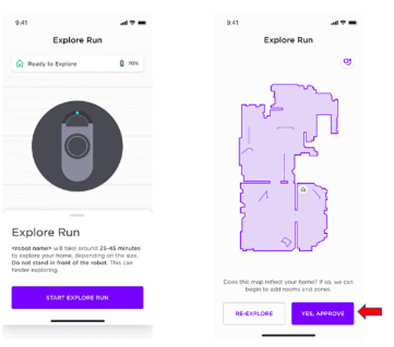
To start an Explore Run, make sure the robot is paired with the app, then follow the instructions on the app. (The app is set to automatically start an Explore Run after the robot is paired.)
The Explore Run takes about 20 to 30 minutes to complete, based on the size of your home. Once complete, your robot will return to the dock and the app will display a map of your home. If the map accurately represents the layout of your home, select Approve to save the map.
How do I keep my robot from getting stuck in tight spaces, under furniture, or on rug corners?
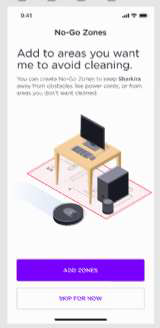
You can create no-go zones in the SharkClean® app to block off problem areas. For best accuracy, no-go zones should be no smaller than 3 feet by 3 feet. Do not create no-go zones in front of the base, as it can interfere with the robot's ability to dock properly.
You can add, edit, and delete no-go zones in the Map section of the app.
What should I do if I recently moved large pieces of furniture around in my home, moved the robot's base, or if the robot isn’t cleaning all the areas I expect it to?
For the best cleaning performance, you should delete the robot's map in the app and send the robot on another Explore Run to create a more accurate map.
Can I map multiple floors?
No, only one floor map can be generated and saved at a time.
Will my robot fall downstairs?
Your robot's cliff sensors will prevent it from falling off ledges. For the cliff sensors to work properly in any mode, all runners, rugs, or carpets must be at least 8 inches from any stairs/steps. Creating a no-go zone with the app will help establish parameters for your robot.
To keep your robot performing optimally, clean the sensors regularly.
Can my robot clean at night, in the dark?
Yes. Shark AI Laser Vision is not dependent on ambient lighting and can navigate your home at night or in low lighting conditions.
How do I turn off or quiet the voice on my robot?
Your robot is equipped with voice recordings to assist you with any troubleshooting you may need to perform. If you would like to turn off the voice feature, you may do so in the app.
1. Go to the menu in the top left corner of your home screen on the SharkClean® app.
2. Select Settings.
3. Select your robot.
4. Select notification volume. You can lower or raise the volume,or, to completely turn it off, turn the volume to "0".
How do I charge my robot?
1. Make sure the base has power. The LED light on the base will turn green when the base is properly connected to power.
2. Place the robot on the base ramp with the Shark logo facing upside-down, then slide the robot up onto the base. Sliding it up the ramp helps to ensure that the two metal charging contacts on the back side of the robot are touching the two metal contacts on the base. When the robot is placed correctly, the base indicator light will turn blue, and the robot will begin to charge.
3. It can take up to four hours for your robot to fully charge from 0% to 100%.
NOTE: Wait 5 seconds (or longer if the battery is depleted) to readjust the position of the robot on the base, as it may take time for the robot to indicate it is charging. If your robot is still not charging, use a clean, dry cloth to wipe off the sensors and the charging contacts on the back of the robot and the base, then try again.
How long will my robot clean before needing to recharge, and how long does it take to charge?
A typical cleaning cycle lasts about an hour. (This varies depending on the cleaning mode you are using and the floor type of your home).
Your robot can take up to six hours to fully charge from an empty battery.
How do I send my robot back to its base?
Press the DOCK button on the robot to send it back to the base.
If the location of the base is saved on the map in the SharkClean app, you can also press the Dock button in the app to send your robot to the base.
NOTE: Do not pick up your robot if it is running. If you need to pick up your robot, first make sure to turn off the power by pressing and holding the DOCK button for 5 to 7 seconds. If the robot has low battery charge or no charge, manually place your robot on the base ramp with the Shark logo upside down, then slide it up onto the base.
Is there a printed Owners Guide?
In an effort for SharkNinja to be a more sustainable company, we have moved away from printed Owners Guides.
You can download a printable pdf version here.
Does the Vac & Mop 2-in-1 Dust Bin, auto-empty into the base?
Yes, the Vac & Mop 2-in-1 Dust bin automatically empties its dust and debris into the base.
What is CleanEdge Technology?
CleanEdge Technology uses blasts of air and corner recognition to help remove debris from edges and corners.
Why is there still hair wrapped around the self-cleaning brushroll?
The self-cleaning brushroll reduces hair buildup on the brushroll over time. However, some hair may remain after a cleaning.